
Admin Settings
Admin Settings
Category: Administration | Audience: undefined | Page: 18 of 33
Table of Contents
- Managing Contacts and Lookups
- Configuring Types and Templates
- Managing Users, Roles, and Permissions
- Creating and Managing Surveys
Admin Settings
Welcome to the Admin Settings section of Elixia Health's clinical trial platform! This guide will help you navigate and utilize the Admin Tab in the MCT Application, ensuring you can efficiently manage your clinical trials.
Introduction
The Admin Tab is a powerful feature within the MCT Application, exclusively accessible to users with the 'Admin' role. This tab allows you to perform various administrative tasks essential for the smooth operation of your clinical trials.
Key Concepts
- Admin Tab: Accessible only to users with the 'Admin' role, this tab provides a suite of tools for managing clinical trials.
- Contact Moderator: A feature for managing and moderating contacts.
- Lookups: A repository of predefined values or options used in the application.
- Types and Templates: Configurations for defining and managing templates and their attributes.
- Management: Settings for managing users, roles, and permissions.
- Survey Management: Tools for creating, editing, and managing surveys and questionnaires.
- Security: Settings to ensure the integrity and confidentiality of clinical trial data.
What You Can Do
- Manage contacts and lookups
- Configure types and templates
- Manage users, roles, and permissions
- Create and manage surveys
- Ensure data security
How To
Accessing the Admin Tab
- Log in to the MCT Application with your 'Admin' role credentials.
- Navigate to the MCT Application Home screen.
- Click on the 'Admin' Tab at the top to display all administrative hyperlinks.
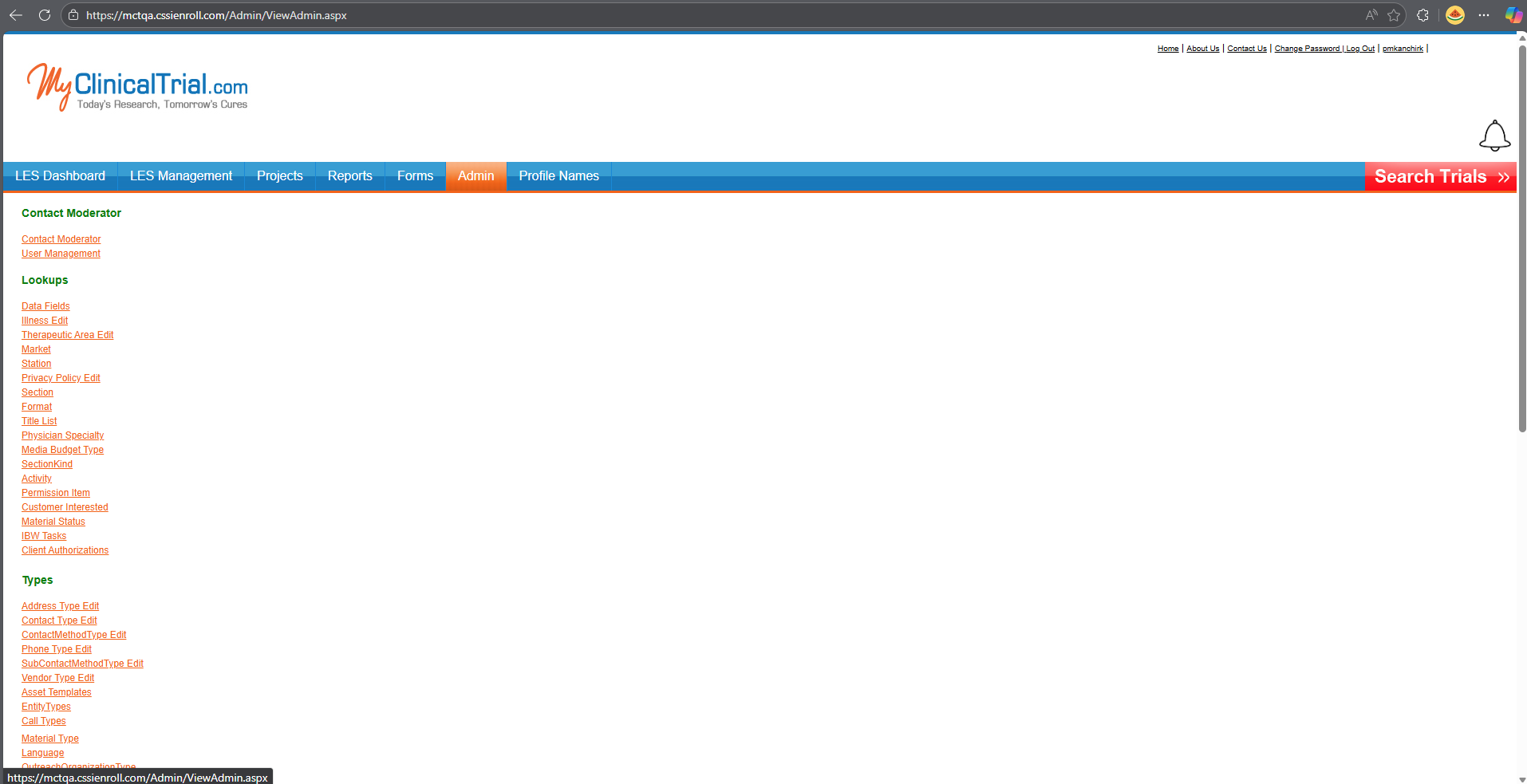
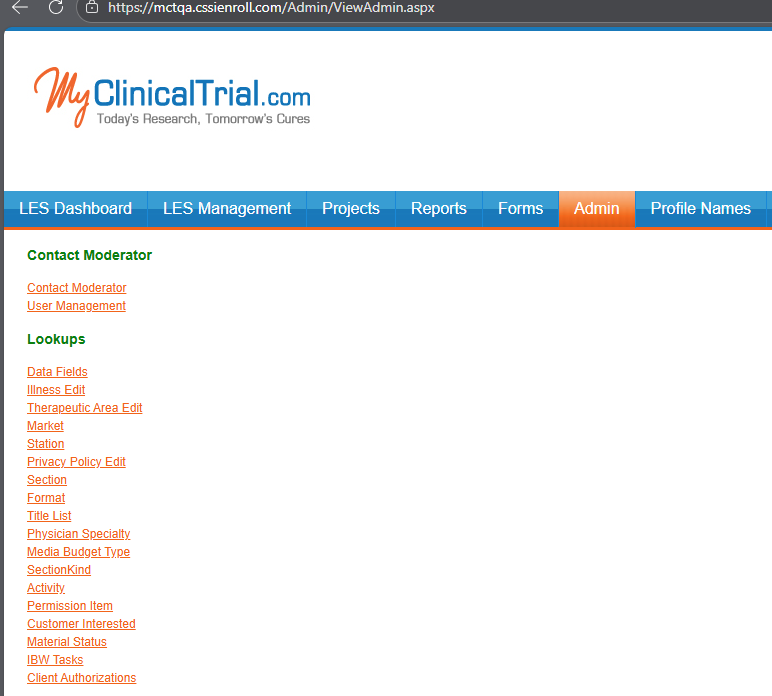
Managing Contacts and Lookups
- Click on the 'Contact Moderator' section to manage contacts.
- Use the 'Lookups' section to access predefined values and options.
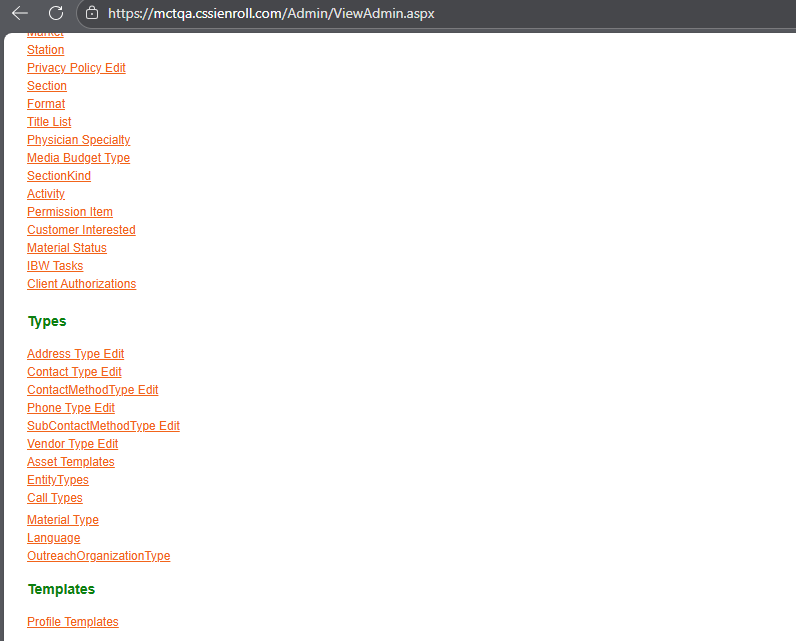
Configuring Types and Templates
- Navigate to the 'Types and Templates' configurations.
- Define template categories, types, and attributes.
- Create and manage template libraries for reuse across trials.
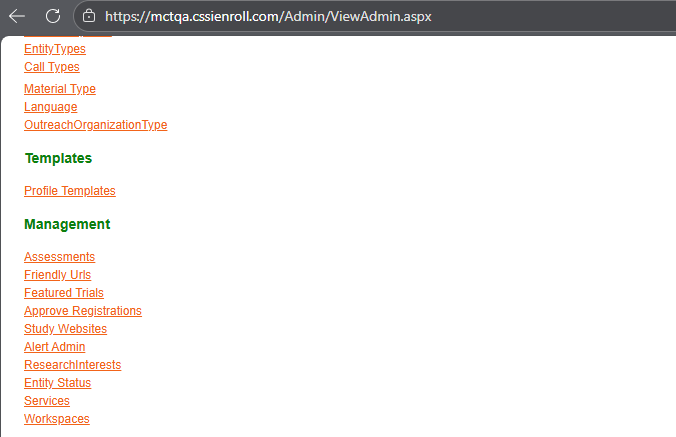
Managing Users, Roles, and Permissions
- Go to the 'Management' settings.
- Manage users, assign roles, and set permissions.
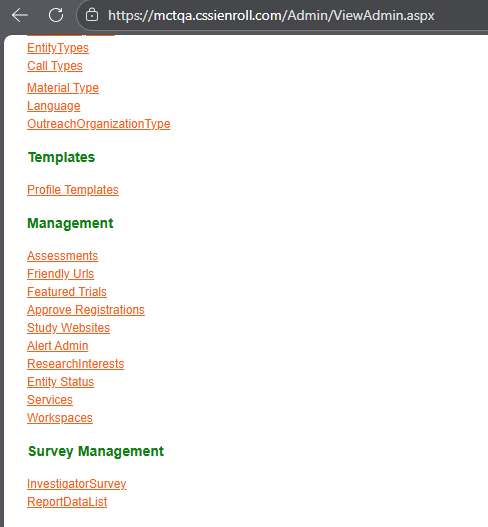
Creating and Managing Surveys
- Access the 'Survey Management' settings.
- Design, deploy, and track surveys and questionnaires.
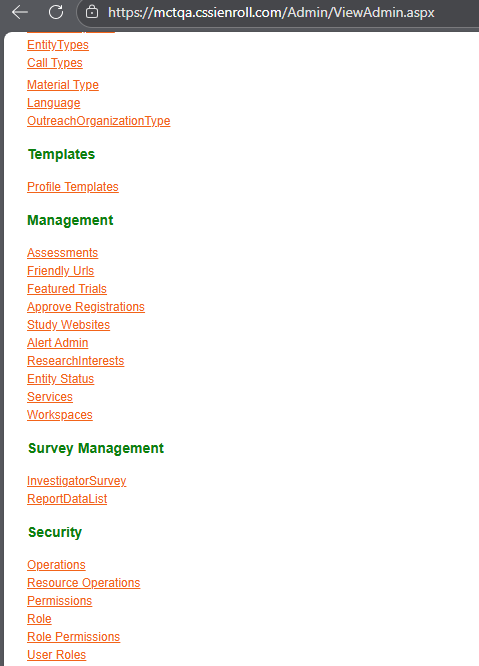
Ensuring Data Security
- Navigate to the 'Security' settings.
- Configure user authentication, access control, and data encryption.
Tips & Best Practices
💡 Tip: Regularly review and update your 'Types and Templates' configurations to ensure they align with your current clinical trial needs. This will help maintain data consistency and improve workflow efficiency.
Next Steps
- Explore each section within the Admin Tab to familiarize yourself with all available features.
- Consult the MCT and MTJ portals for more detailed guidance on specific settings.
- Reach out to platform administrators if you need further assistance or have specific questions.
Navigation
← Previous: Email & Fax Communication
📚 Documentation HomeNext: Survey Management →
Generated from MCT Knowledge Base • v1.1.0 • January 2, 2026