
Email & Fax Communication
Email & Fax Communication
Category: Communication | Audience: undefined | Page: 17 of 33
Table of Contents
- Access Send Email/Fax Functionality
- Send a Message Using a Template
- Track Sent Communications and View Communication History
Email & Fax Communication
The Email & Fax module in MCT provides a simple interface for sending emails and faxes to project contacts. Filter by status, project, and principal investigator to target specific recipients for communication.
Key Concepts
- Email & Fax Interface: Centralized page for sending emails and faxes to project contacts
- Status Filter: Filter recipients by active/inactive status
- Project-Based Filtering: Select specific projects to target project contacts
- PI-Based Filtering: Filter by Principal Investigator to narrow recipient list
- Send Email: Send emails to filtered contacts
- Send Fax: Send faxes to filtered contacts
What You Can Do
- Access the Email & Fax communication page from the Send Email/Fax tab
- Filter recipients by status (Active/Inactive)
- Select specific projects to target project-related contacts
- Filter by Principal Investigator name
- Send emails to filtered contacts
- Send faxes to filtered contacts
How To
Access the Email & Fax Page
- Log in to the MCT application at mctqa.cssienroll.com
- Click on the Projcts tab in the main navigation bar
- Click on the Send Email/Fax sub-tab
https://mctqa.cssienroll.com/Profile/SendEmailAndFax%20.aspx
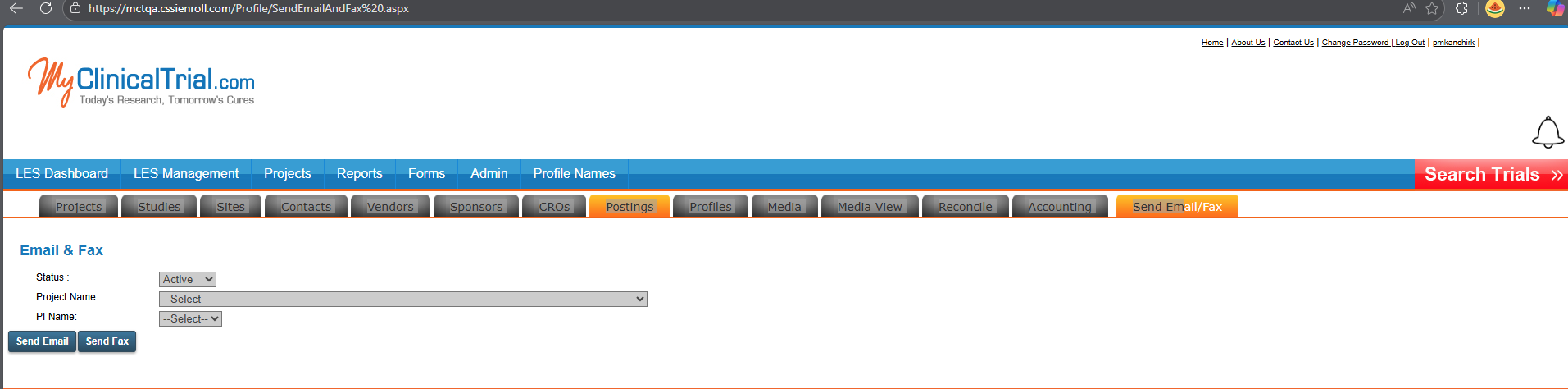
- The Email & Fax page will display with filtering options
Email & Fax Interface
The Email & Fax page provides a simple filtering interface to target specific recipients:
Filter Fields:- Status: Select recipient status from dropdown
- Options: Active, Inactive (or similar status options)
- Default shows "Active"
- Filters recipients by their current status
- Project Name: Select project from --Select-- dropdown
- Lists all available projects
- Filters contacts associated with the selected project
- Leave as "--Select--" to include all projects
- PI Name: Select Principal Investigator from --Select-- dropdown
- Lists all Principal Investigators
- Filters contacts by PI assignment
- Leave as "--Select--" to include all PIs
Action Buttons:- Send Email: Click to compose and send email to filtered recipients
- Opens email composition interface
- Recipients automatically filtered based on selected criteria
- Send Fax: Click to compose and send fax to filtered recipients
- Opens fax composition interface
- Recipients automatically filtered based on selected criteria
Send an Email
- On the Email & Fax page, configure filters:
- Select Status (e.g., Active)
- Select Project Name from dropdown (optional)
- Select PI Name from dropdown (optional)
- Click the Send Email button
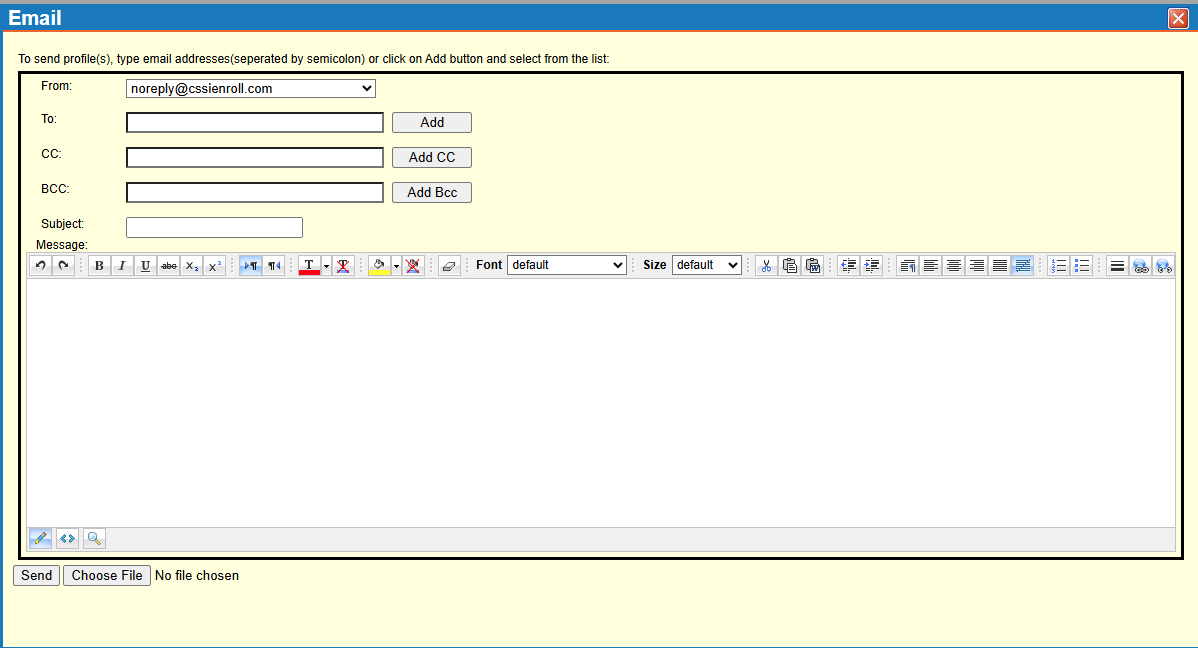
- An email composition window opens with the following interface:
 Email Composition Fields:
Header Section:
Email Composition Fields:
Header Section:
- Instructions: "To send profile(s), type email addresses(separated by semicolon) or click on Add button and select from the list:"
- From: Select sender email from dropdown
- Default: "[email protected]"
- Dropdown allows selection of different sender addresses
- To: Enter recipient email address(es)
- Text input field for manual entry
- Click Add button to select recipients from list
- Multiple addresses can be separated by semicolons
- CC: Enter CC recipient email address(es) (optional)
- Text input field for manual entry
- Click Add CC button to select CC recipients from list
- Multiple addresses can be separated by semicolons
- BCC: Enter BCC recipient email address(es) (optional)
- Text input field for manual entry
- Click Add Bcc button to select BCC recipients from list
- Multiple addresses can be separated by semicolons
- Subject: Enter email subject line
- Text input field for subject
Message Section:- Message: Compose email body using rich text editor
- Large text area with formatting toolbar
- Formatting Tools Available:
- Undo/Redo arrows
- Bold (B), Italic (I), Underline (U)
- Strikethrough (abc)
- Subscript (X₂), Superscript (X²)
- Text color, background color
- Remove formatting
- Font dropdown (default)
- Size dropdown (default)
- Insert symbols, special characters
- Alignment options (left, center, right, justify)
- Lists (numbered, bulleted)
- Indent/outdent
- Insert link, insert image
- HTML editor tools
Bottom Section:- File Attachment:
- Click Choose File button to attach files
- Shows "No file chosen" when no file selected
- Multiple files can be attached
Action Buttons:- Send: Click to send the composed email to all recipients
- Choose File: Opens file browser to select attachment
- Compose your email:
- Select From address if needed (default: [email protected])
- Enter recipient addresses in To field or click Add to select from list
- Add CC/BCC recipients if needed
- Enter subject line
- Compose message using rich text editor
- Format text using toolbar (bold, italic, colors, alignment, lists)
- Click Choose File to attach documents if needed
- Review the recipient list to ensure correct addresses
- Click Send button to send the email to all recipients
Send a Fax
- On the Email & Fax page, configure filters:
- Select Status (e.g., Active)
- Select Project Name from dropdown (optional)
- Select PI Name from dropdown (optional)
- Click the Send Fax button
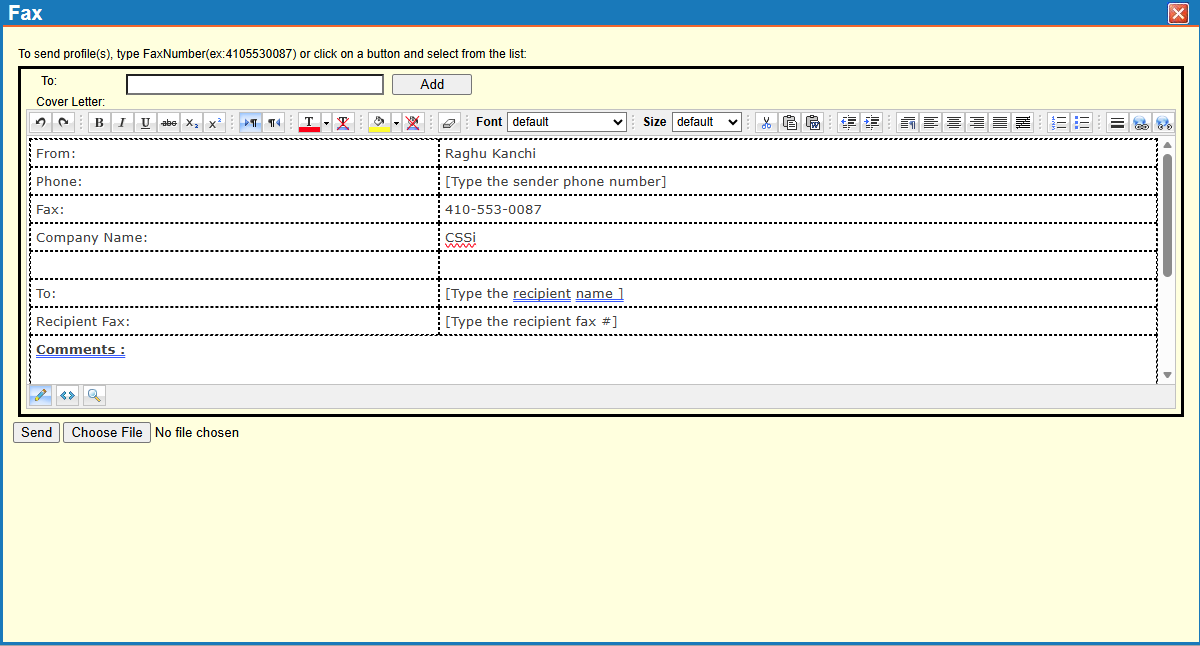
- A fax composition window opens with the following interface:
 Fax Composition Fields:
Header Section:
Fax Composition Fields:
Header Section:
- Instructions: "To send profile(s), type Fax Number(ex: 4105530087) or click on a button and select from the list:"
- To: Enter recipient fax number(s)
- Text input field for manual entry
- Click Add button to select recipients from list
- Example format: 4105530087
- Multiple fax numbers can be entered
Cover Letter Section:- Cover Letter: Compose fax cover letter using rich text editor
- Large text area with formatting toolbar
- Formatting Tools Available:
- Undo/Redo arrows
- Bold (B), Italic (I), Underline (U)
- Strikethrough (abc)
- Subscript (X₂), Superscript (X²)
- Text color, background color
- Remove formatting
- Font dropdown (default)
- Size dropdown (default)
- Insert symbols, special characters
- Alignment options (left, center, right, justify)
- Lists (numbered, bulleted)
- Indent/outdent
- Insert link, insert image
- HTML editor tools
Sender Information:- From: Enter sender name
- Text input field
- Placeholder: "[Type the sender name]"
- Example: "Raghu Kanchi"
- Name: Sender's full name
- Pre-populated from user profile
- Example: "Raghu Kanchi"
- Phone: Enter sender phone number
- Text input field
- Placeholder: "[Type the sender phone number]"
- Fax: Sender's fax number
- Pre-populated field
- Example: "410-553-0087"
- Company Name: Sender's company
- Pre-populated field
- Example: "CSSI"
Recipient Information:- To: Enter recipient name
- Text input field
- Placeholder: "[Type the recipient name]"
- Recipient Fax: Enter recipient fax number
- Text input field
- Placeholder: "[Type the recipient fax #]"
- This is the destination fax number
Additional Information:- Comments: Enter additional comments or notes
- Text area for free-form text
- Optional field for cover page notes
Bottom Section:- File Attachment:
- Click Choose File button to attach documents
- Shows "No file chosen" when no file selected
- Required to send a fax (must attach document)
Action Buttons:- Send: Click to send the fax to all recipients
- Choose File: Opens file browser to select document to fax
- Compose your fax:
- Enter recipient fax number in To field or click Add to select from list
- Compose cover letter using rich text editor if needed
- Verify sender information (From, Name, Phone, Fax, Company Name)
- Enter recipient name in To field
- Confirm recipient fax number in Recipient Fax field
- Add any comments or notes in Comments section
- Click Choose File to select document to fax (required)
- Format cover letter text using toolbar if needed
- Review all fax details:
- Verify recipient fax number is correct
- Confirm sender information is accurate
- Ensure document is attached
- Click Send button to send the fax to the recipient
Tips & Best Practices
- Filter Before Sending: Always configure Status, Project Name, and PI Name filters before clicking Send Email or Send Fax to ensure you're targeting the correct recipients
- Status Filtering: Use "Active" status to avoid sending communications to inactive contacts
- Project-Specific Communications: Select specific projects when sending project-related updates or announcements
- PI Targeting: Use the PI Name filter when you need to communicate with contacts at sites managed by a specific Principal Investigator
- Verify Recipients: After opening the email or fax composition window, review the recipient list to confirm it matches your intended audience
- Combination Filtering: Combine multiple filters (Status + Project + PI) for highly targeted communications
- Leave Filters Blank: If you need to send to all contacts, leave Project Name and PI Name as "--Select--" but be cautious with broad communications
- Test First: For important communications, consider sending a test message to yourself first to verify content and formatting
Next Steps
- Access the Email & Fax page via Profile Names → Send Email/Fax tab
- Familiarize yourself with the Status, Project Name, and PI Name filter options
- Practice filtering contacts using different combinations of criteria
- Send a test email to yourself using the filtered recipient list
- Review the email and fax composition interfaces
- Establish guidelines with your team for when to use email vs. fax communications
- Document standard filter combinations for common communication scenarios
Navigation
← Previous: Reports & Analytics
📚 Documentation HomeNext: Admin Settings →
Generated from MCT Knowledge Base • v1.1.0 • January 2, 2026