
Reports & Analytics
Reports & Analytics
Category: Reporting | Audience: undefined | Page: 16 of 33
Table of Contents
- Generate and Customize Reports
- Use the LES Dashboard for Data Analysis
Reports & Analytics
The Reports module in MCT provides comprehensive reporting capabilities across multiple categories including Client Reports, LES Management, LES Reports, Media Management, Prescreening and Referrals, Retention, Secondary Screening, Project Management Reports, and Miscellaneous reports.
Key Concepts
- Report Categories: Reports are organized into distinct categories for easy navigation
- Client Reports: Reports for external clients and sponsors to track enrollment, referrals, site assessments, and study progress
- LES Management: Reports for LES (Lead Engagement Specialist) team management including call attempts, assignments, and secondary screening
- LES Reports: Key reports for LES operations including enrollment plans, contact reports, and referral status
- Media Management: Reports for media campaign tracking, budgeting, billing, and performance analysis
- Prescreening and Referrals: Reports for profile management, referral processing, and site details
- Retention: Reports for tracking patient retention and drop-out status
- Secondary Screening: Reports for secondary screening results and referral processing
- Project Management Reports: Comprehensive project-level reports for enrollment, site performance, and study metrics
- Miscellaneous: Additional reports for investigators, media reconciliation, and volunteer registration
- Report Versioning: Many reports have "_New" versions indicating updated functionality or layout
- Info Icons: Blue info icons (ⓘ) next to report names provide additional details about report functionality
What You Can Do
- Access over 100 reports organized into 9 categories
- Create new custom reports using the New button
- Generate reports for enrollment tracking, site performance, and referral management
- View LES activity, assignments, and secondary screening statistics
- Track media spending, billing, and campaign performance
- Monitor patient prescreening, profiles, and referrals
- Analyze retention data and drop-out status
- Export reports in multiple formats (PDF, Excel, CSV)
- Customize report parameters and filters for specific data views
How To
Access Reports in MCT
- Log in to MCT at (https://mctqa.cssienroll.com/Admin/ReportCategory.aspx)
- Click on the Reports tab in the main navigation bar
- The Reports page displays with a New button at the top and report categories below
- Browse reports organized by category:
- Client Reports (left column)
- LES Management (middle column)
- LES Reports (right column)
- Media Management (right column, scrolled)
- Miscellaneous (right column, scrolled)
- Prescreening and Referrals (left column, scrolled)
- Retention (middle column, scrolled)
- Secondary Screening (right column, scrolled)
- Project Management Reports (spans multiple columns, scrolled)
- Click on any report link (displayed in orange text) to open that report
- Blue info icons (ⓘ) next to report names provide additional details
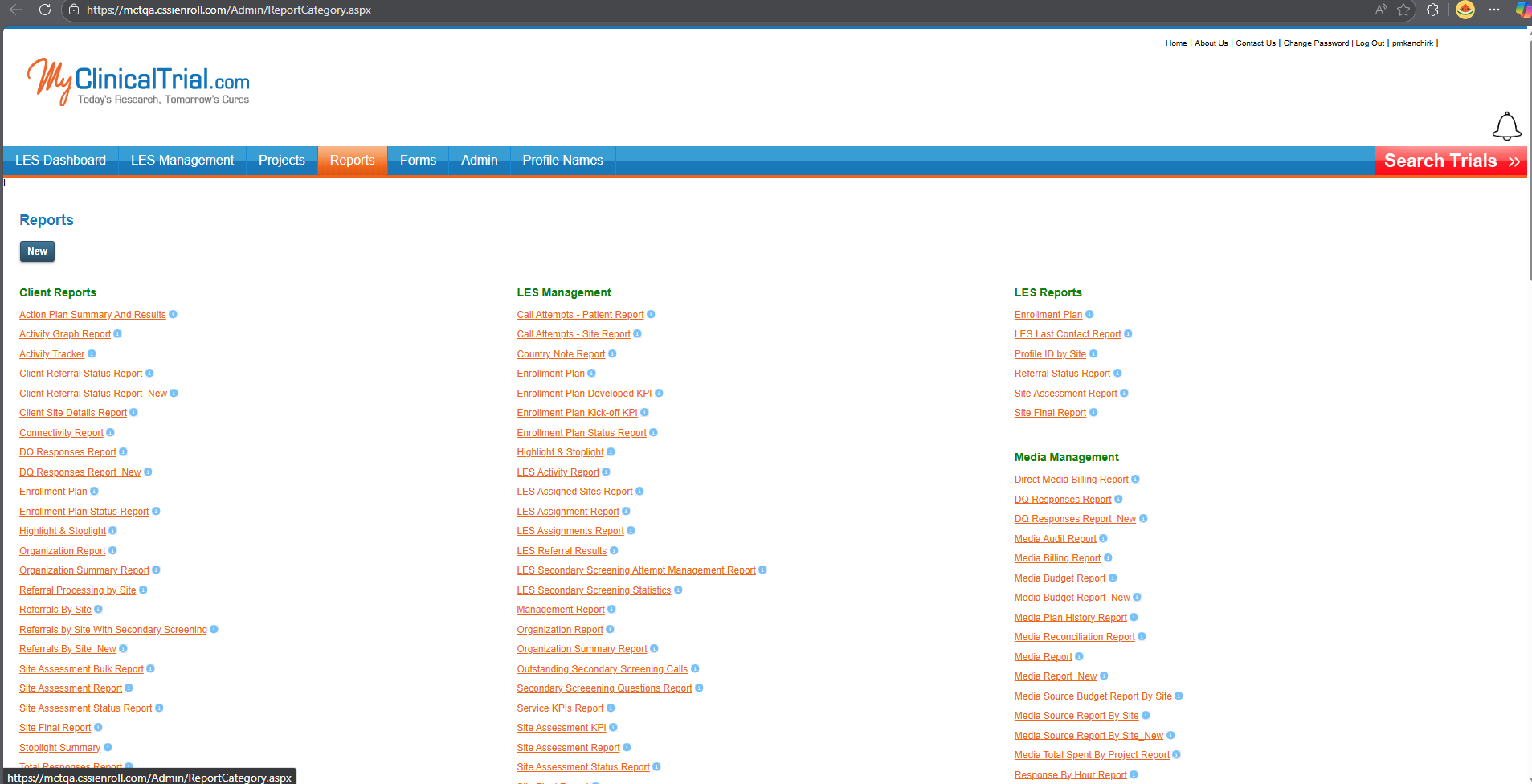
Report Categories and Available Reports
The MCT Reports module provides comprehensive reporting across the following categories:
Client Reports
Reports designed for external clients and sponsors to track study progress:
- Action Plan Summary And Results
- Activity Graph Report
- Activity Tracker
- Client Referral Status Report
- Client Referral Status Report_New
- Client Site Details Report
- Connectivity Report
- DQ Responses Report
- DQ Responses Report_New
- Enrollment Plan
- Enrollment Plan Status Report
- Highlight & Stoplight
- Organization Report
- Organization Summary Report
- Referral Processing by Site
- Referrals By Site
- Referrals by Site With Secondary Screening
- Referrals By Site_New
- Site Assessment Bulk Report
- Site Assessment Report
- Site Assessment Status Report
- Site Final Report
- Stoplight Summary
- Total Responses Report
- Total Responses Report_New
- Unopened Referrals by Site Report
LES Management
Reports for managing LES team activities and performance:
- Call Attempts - Patient Report
- Call Attempts - Site Report
- Country Note Report
- Enrollment Plan
- Enrollment Plan Developed KPI
- Enrollment Plan Kick-off KPI
- Enrollment Plan Status Report
- Highlight & Stoplight
- LES Activity Report
- LES Assigned Sites Report
- LES Assignment Report
- LES Assignments Report
- LES Referral Results
- LES Secondary Screening Attempt Management Report
- LES Secondary Screening Statistics
- Management Report
- Organization Report
- Organization Summary Report
- Outstanding Secondary Screening Calls
- Secondary Screeeening Questions Report
- Service KPIs Report
- Site Assessment KPI
- Site Assessment Report
- Site Assessment Status Report
- Site Final Report
- Site Strategies Team Details
- Site Strategies Team Status
- Sites By Project
- Sites by Protocol Report
- Stoplight Summary
- Summary Of Communication
- Time to Contact Report
- Total Sites by LES
- Weekly Call Report
- Weekly MCT Report
LES Reports
Key operational reports for LES team:
- Enrollment Plan
- LES Last Contact Report
- Profile ID by Site
- Referral Status Report
- Site Assessment Report
- Site Final Report
Media Management
Reports for media campaign tracking and financial management:
- Dead Media Billing Report
- DQ Responses Report
- DQ Responses Report_New
- Media Audit Report
- Media Billing Report
- Media Budget Report
- Media Budget Report_New
- Media Plan History Report
- Media Reconciliation Report
- Media Report
- Media Report_New
- Media Source Budget Report By Site
- Media Source Report By Site
- Media Source Report By Site_New
- Media Total Spend By Project Report
- Response By Hour Report
- Site Assessment Bulk Report
- Site Source Report
- Total Responses Report
- Total Responses Report_New
Prescreening and Referrals
Reports for patient prescreening and referral management:
- Closest Site Report
- DQ Responses Report
- DQ Responses Report_New
- Duplicate Profiles
- Duplicate Scheduled Appointments
- Profile ID by Site
- Project Form Data
- Referral Screening Report
- Referral Screening Report_New
- Referral Source Report
- Referral Source Report_New
- Referral Status Report
- Referrals By Site
- Referrals by Site With Secondary Screening
- Referrals By Site_New
- Response By Hour Report
- Site Assessment Bulk Report
- Site Details
- Total Responses Report
- Total Responses Report_New
- Unopened Referrals by Site Report
Retention
Reports for patient retention tracking:
- Drop-out Status Report
- Retention Project Report
- Retention Reminder Site Report
Secondary Screening
Reports focused on secondary screening activities:
- Referral Screening Report
- Referral Screening Report_New
- Referrals By Site
- Referrals by Site With Secondary Screening
- Referrals By Site_New
- Secondary Screening Results
- Time to Contact Report
Project Management Reports
Comprehensive reports for overall project management:
- Action Plan Summary And Results
- Activity Graph Report
- Activity Tracker
- Closest Site Report
- Connectivity Report
- Country Note Report
- DQ Responses Report
- DQ Responses Report_New
- Enrollment Plan
- Enrollment Plan Status Report
- Highlight & Stoplight
- Media Budget Report
- Media Budget Report_New
- Media Report
- Media Report_New
- Media Source Report By Site
- Media Source Report By Site_New
- Organization Report
- Organization Summary Report
- PQ No Site Report
- Project Aware Profile Report
- Project Country Report
- Project Form Data
- Referral Processing by Site
- Referral Processing by Site CSSI Status
- Referral Status Report
- Referrals By Site
- Referrals by Site With Secondary Screening
- Referrals By Site_New
- Secondary Screening Questions Report
- Secondary Screening Results
- Selected Activities
- Service KPIs Report
- Site Assessment Bulk Report
- Site Assessment Report
Miscellaneous
Additional specialized reports:
- Investigator Contact Report
- Investigator Specialty Report
- Investigator Survey
- Media Final Reconciliation Report
- Media Invoicing Report
- Media Reconciliation Report
- Media Report By Therapeutic Area
- User Contact Gap Report
- Volunteer Registration Report
Generate and View a Report
- From the Reports page, click on any report name (orange link)
- The report will open in a new page or popup window
- Most reports require parameter selection:
- Project: Select project from dropdown
- Site: Select site(s) from dropdown or multiselect
- Date Range: Enter start and end dates
- Additional Filters: Depending on the report, select status, result type, or other criteria
- Click View Report or Run Report button to generate the report
- The report displays in grid/table format with data based on your parameters
Create a New Custom Report
- On the Reports page, click the New button at the top
- A report creation interface opens
- Configure report settings:
- Report name and description
- Data source and tables
- Fields to include
- Filters and parameters
- Sorting and grouping
- Preview the report to verify data
- Save the custom report - it will appear in the appropriate category
Export and Share Reports
- After generating a report, look for export options (typically in the report toolbar)
- Common export formats include:
- Excel (.xlsx) - For data analysis and manipulation
- PDF - For sharing formatted reports
- CSV - For importing into other systems
- CBrowse by Category: Use the category groupings to quickly find the type of report you need
Understanding Report Versions
Many reports have two versions indicated by naming:
- Standard Report Name: Original version (e.g., "DQ Responses Report")
- Report Name_New: Updated version with enhanced features (e.g., "DQ Responses Report_New")
- New versions typically have improved UI/UX
- Additional filtering options
- Better performance on large datasets
- Enhanced export capabilities
- Updated visualizations or layouts
- Use
Access the Reports page and familiarize yourself with the 9 report categories
- Start with Client Reports to understand overall enrollment and site performance
- Review key LES Management reports for operational tracking
- Generate your first Enrollment Plan report for project planning
- Compare standard reports with their "_New" versions to see feature improvements
- Export a few reports to Excel to practice data analysis
- Identify which reports you'll need regularly and bookmark them
- Work with your LES team to establish regular reporting schedules
- Review Media Management reports to track campaign spending and effectiveness
- Create a custom report if standard reports don't meet your specific needs
- Contact Elixia Health support for training on specific reports or categories
Next Steps
- Explore the different report types available in MCT and MTJ.
- Customize reports to better suit your project's needs.
- Use the LES Dashboard for comprehensive data analysis and management.
- If you need more advanced reporting features, contact the Elixia Health support team for assistance.
Navigation
← Previous: Postings & Profiles
📚 Documentation HomeNext: Email & Fax Communication →
Generated from MCT Knowledge Base • v1.1.0 • January 2, 2026*