
Login & Authentication
Login & Authentication
Category: Getting Started | Audience: undefined | Page: 6 of 33
Table of Contents
- Log In Using Email and Password
- Use Microsoft Login Integration
- What Happens After Successful Login
- Troubleshoot Common Login Issues
Login & Authentication
Welcome to Elixia Health's clinical trial platform! This guide will walk you through the login and authentication process, ensuring you have seamless access to the MCT (MyClinicalTrial) portal.
Key Concepts
- MCT Portal: The central hub for managing clinical trials.
- User Types: Site, Sponsor, and CRO users, each with unique features and access.
- Microsoft Integration: Option to log in using your Microsoft credentials.
What You Can Do
- Access the MCT login page.
- Log in using your email and password.
- Use Microsoft login integration.
- Troubleshoot common login issues.
How To
Access the MCT Login Page
- Open your web browser and navigate to http://mctportalqa.nexusinformatics.com/Login.aspx.
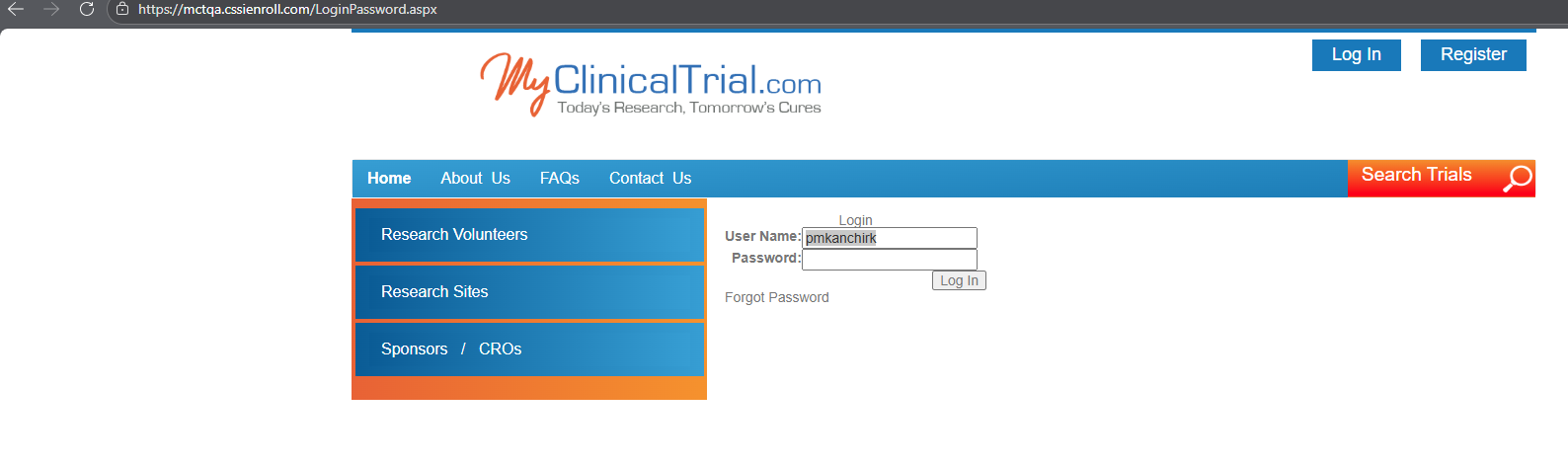
- You will see the Login window titled "Login" in the middle of the page.
Log In Using Email and Password
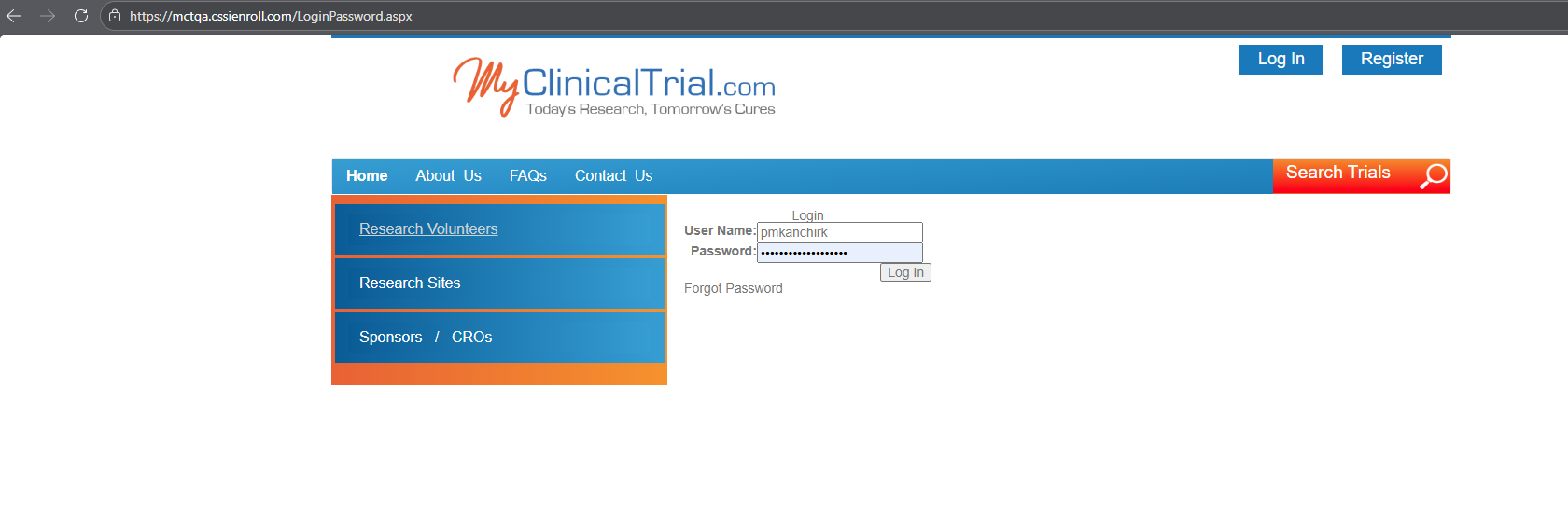
- Enter your valid email address in the "Email" field.
- Enter your password in the "Password" field.
- Click the "Log In" button at the bottom of the window.
Use Microsoft Login Integration
- On the MCT login page, click the "Login with Microsoft" button.
- You will be redirected to the Microsoft login page.
- Enter your Microsoft email and password.
- Once authenticated, you will be redirected back to the MCT Portal and logged in automatically.
What Happens After Successful Login
- You will be redirected to the Application home page.
- As an Admin or Project Ops user, you'll see a dashboard with various menu options.
- As a User, you'll see a personalized dashboard with relevant information.
Troubleshoot Common Login Issues
- Incorrect username or password:
- Ensure correct capitalization and spacing.
- Use the "Forgot Password" feature to reset your password.
- Account locked due to multiple failed login attempts:
- Contact the MCT Support team to request account unlocking.
- Password expiration:
- Log in to the MCT or MTJ Patient portal and follow prompts to reset your password.
- Session timeout or cookie issues:
- Clear your browser's cache and cookies.
- Contact the MCT Support team if the issue persists.
Tips & Best Practices
- Keep your login credentials secure.
- Regularly update your password to enhance security.
- Familiarize yourself with the platform's layout and features.
Next Steps
- Explore the platform's features and functions.
- Review the platform's documentation and guidelines.
- Reach out to the support team if you have any questions or need assistance.
Navigation
← Previous: User Roles & Permissions
📚 Documentation HomeNext: Dashboard Overview →
Generated from MCT Knowledge Base • v1.1.0 • January 2, 2026