
User Roles & Permissions
User Roles & Permissions
Category: Getting Started | Audience: undefined | Page: 5 of 33
Table of Contents
- Accessing Your Role-Specific Features
User Roles & Permissions
Welcome to Elixia Health's Clinical Trial Platform! Understanding user roles and permissions is crucial for ensuring smooth operations and secure access. This guide will help you navigate the different roles within MCT and what each role can do.
Key Concepts
In MCT, user roles define what actions and screens you can access. Each role is tailored to specific responsibilities within the clinical trial management process.
What You Can Do
Depending on your role, you can:
- Access different tabs and features within MCT
- View, create, and manage clinical trial data
- Send communications like emails and faxes
- Generate and view reports
- Manage user profiles and permissions
How To
Accessing Your Role-Specific Features
- Log In to MCT:
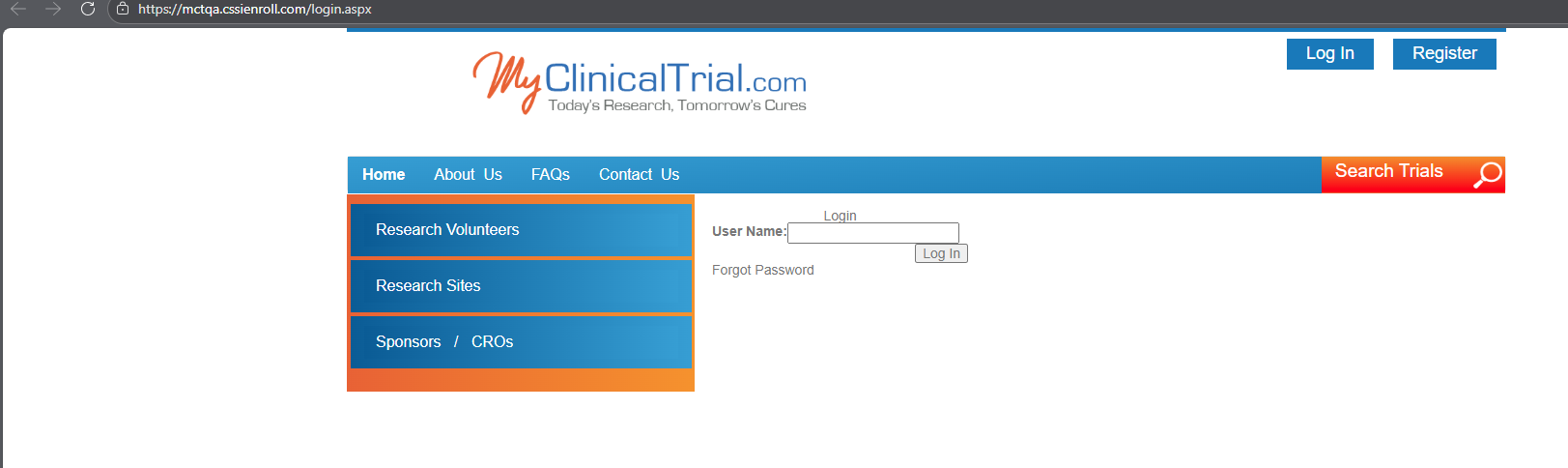
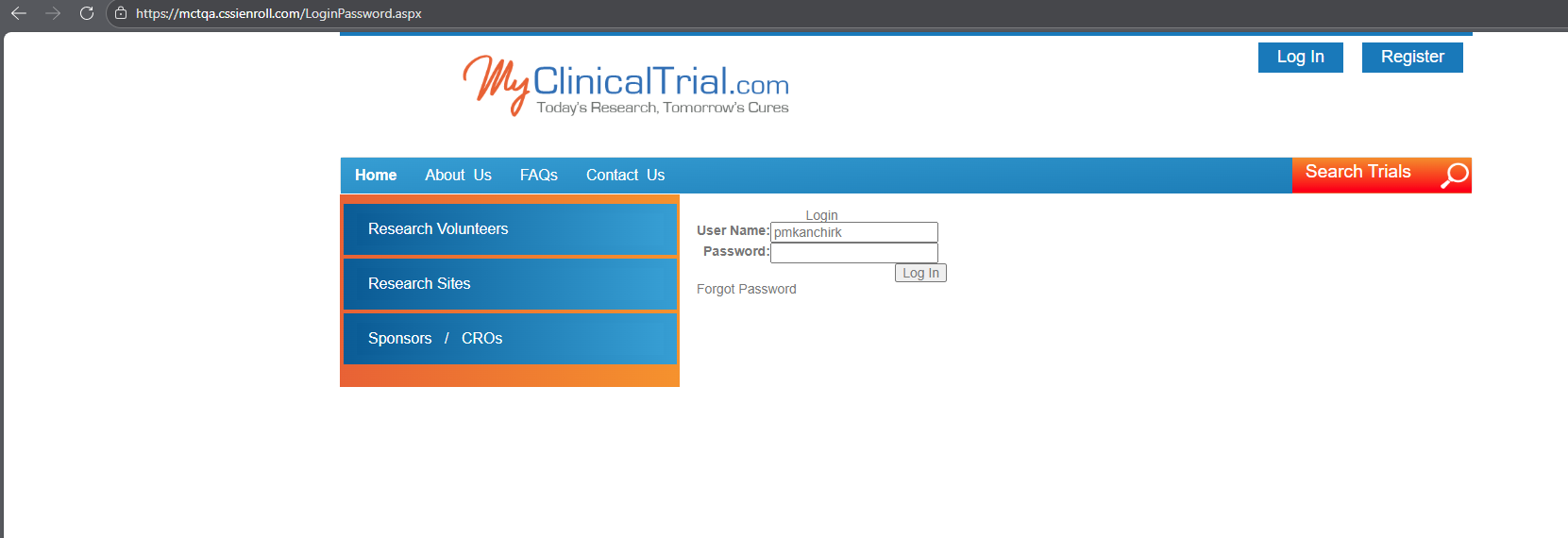
- Open your web browser and go to the MCT login page: https://mctqa.cssienroll.com/login.aspx.
- Enter your username and password.
- Click "Login."
- Navigate to Your Dashboard:
- Once logged in, you will be directed to your Home screen.
- The Admin tabs available to you will depend on your role.
Understanding Your Role
Admin User
- Access:
Here are all the tab names visible in the screenshot, listed left to right and grouped by rows:
Top Navigation Bar
- LES Dashboard
- LES Management
- Projects
1. Projects
2. Studies
3. Sites
4. Contacts
5. Vendors
6. Sponsors
7. CROs
8. Postings
9. Profiles
10. Media
11. Media View
12. Reconcile
13. Accounting
14. Send Email/Fax
- Reports
- Forms
- Admin
- Profile Names

Project Operations Role
- Access:
- Sponsors Tab
- CROs Tab
- Postings Tab
- Profiles Tab
- Media View Tab
- Send Email/Fax Tab
- LES Dashboard Tab
- Reports Tab
- Forms Tab
- Admin Tab (specific sections)
MCT User Role
- Access:
- LES Dashboard
- LES Management
- Projects
- Reports
- Forms
- Admin
- Profile Names
LES Role
- Access:
- LES Dashboard
- Reports
- Referral Followup Link
- Patient Profile Search
- Overall Projects
- Contacts Section
Tips & Best Practices
- Regularly Review Permissions: Ensure that user roles are up-to-date and aligned with current responsibilities.
- Use Strong Passwords: Protect your account with a strong, unique password.
- Log Out: Always log out of MCT when you finish your work to protect sensitive data.
Next Steps
Now that you understand your role and permissions, explore the features available to you. If you have any questions or need further assistance, reach out to your platform administrator.
Happy trial managing!
Navigation
← Previous: Timesheet Overview
📚 Documentation HomeNext: Login & Authentication →
Generated from MCT Knowledge Base • v1.1.0 • January 2, 2026