
Sites Management
Sites Management
Category: Core Features | Audience: undefined | Page: 10 of 33
Table of Contents
- Add New Sites and Configure Site Settings
- Manage Site Contacts and Activate/Deactivate Sites
- Set Up Sites and Track Their Performance
Sites Management
Manage clinical research sites participating in your trials. This section provides comprehensive tools to configure site information, assign protocols, manage account teams, track postings, and monitor site performance.
Introduction
Sites are the clinical research facilities where trials are conducted. The Sites Management interface allows you to configure site details, assign screener forms, manage protocols, track patient profiles, monitor postings, and associate sites with billing projects.
Key Concepts
- Site Information: Basic details including Site ID, Site Name, Keywords, Website, IRB, SMS settings, and Status
- Account Team: Site manager and contact information for the site
- Forms: Screener forms associated with this site
- Protocols: Study protocols assigned to this site
- Profiles: Patient profiles and referrals managed by this site
- Site Postings Manager: Active postings and their connection status
- On Projects: Billing projects associated with this site
What You Can Do
- Create and edit site information
- Assign account team members to sites
- Configure screener forms for sites
- Assign study protocols to sites
- Manage patient profiles and referrals
- Track site postings and posting status
- Associate sites with billing projects
- Manage site addresses and contacts
- Monitor research interests and attributes
How To
Navigate to Sites Management
- Log in to the MCT application
- Click on the Projects tab in the main navigation
- Click on the Sites sub-tab to access Sites Management
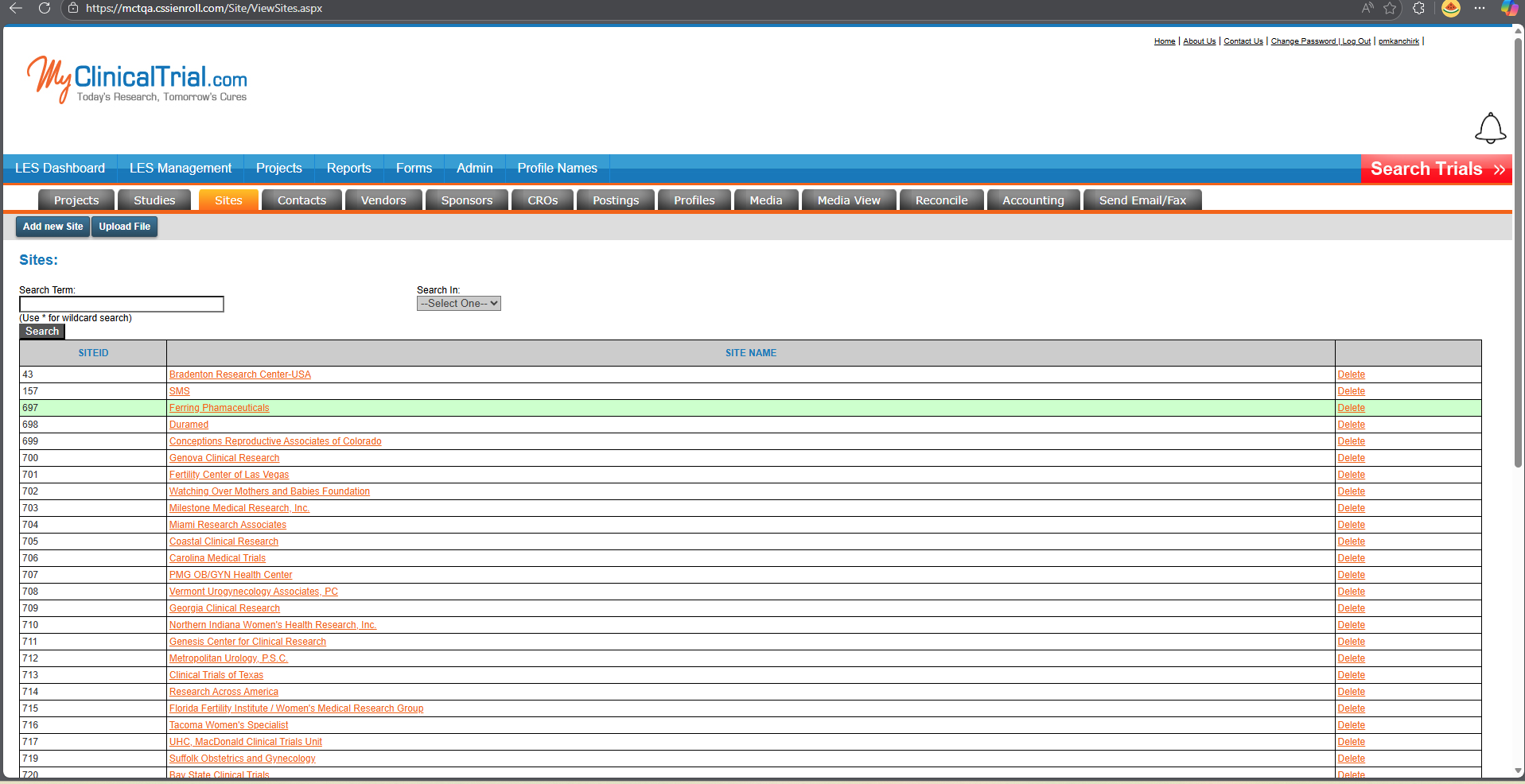
Configure Site Information
Basic Site Details:- Site ID: System-generated unique identifier (e.g., 43)
- Site Name: Enter the research center name (e.g., "Bradenton Research Center-USA")
- Site Keywords: Enter keywords for searching/categorizing the site
- Site Website: Enter the site's website URL (e.g., "www.bradentonresearch.com")
- IRB: Select the Institutional Review Board from dropdown
- SMS Candidate: Select "Yes" or "No" for SMS capability
- Status: Select the site status from dropdown (Active, Inactive, etc.)
Click Save, New, or Cancel buttons at the top to manage the site record.
Manage Account Team
Configure the site management team:
- Site Manager: Select from the --Select-- dropdown
- Email: Enter the site manager's email address
- Phone No: Enter the site manager's phone number
- Click Save to update the account team information
Configure Screener Forms
Assign screener forms to the site for patient screening:
The Forms section displays multiple screener form dropdowns:
- Test Screener
- Hot Flash Site Assessment
- Clinical Research Partners
- Steward St Elizabeth Medical Center
- Kansas City Gastroenterology Hepatology
- NewStudyForm
- Select a screener form from the dropdown
- Click test to test the screener form
- Click Edit to modify the screener form
- Click Save at the bottom to save all form assignments
Assign Study Protocols
Associate study protocols with the site using the dual-list interface:
Study Protocols Section:- Study Protocols (left list): Shows all available protocols
- AZT-001
- COMB157GUS07
- COMB157GUS09
- COMB157GUS10
- COMB157GUS12
- COMB157GUS16
- DJ456
- And more...
- Site Protocols (right list): Shows protocols assigned to this site
- Example: Carisepy J001
- Transfer Protocols:
- Select a protocol from the left list
- Click the >> button to assign it to the site
- Select a protocol from the right list
- Click the << button to remove it from the site
- Click Save to commit protocol assignments
Manage Profiles (Patient Referrals)
Track and manage patient profiles and referrals for this site:
Add New Referral:- Click the Add New Referral button to create a new patient profile
- Search in: Select search criteria from dropdown (--Select--)
- Start Date: Enter start date (format: mm/dd/yyyy) with calendar picker
- End Date: Enter end date (format: mm/dd/yyyy) with calendar picker
- Search Term: Enter keywords to search for profiles
Select checkbox filters:
- 0 Xfer Result: Profiles with zero transfer results
- Duplicate: Duplicate profiles
- Quick Hang Up: Quick hang-up calls
- Xfer Incomplete: Incomplete transfers
- Incomplete Call: Incomplete calls
- Referral: Referral profiles
- DO: Direct outcome
- PQ NI: Pre-qualification not interested
- Referral Hang-up: Referral hang-ups
- Rows per Page: Select 10, 25, 50, or 100 from dropdown
- Click Search to execute the search
The profiles table displays:
- Profile: Link to view profile (orange "Profile" link)
- Edit Profile: Link to edit profile (orange "Edit Profile" link)
- Show PDF: Link to view profile PDF (orange "Show PDF" link)
- Checkbox: Select profiles for bulk actions
- PI NAME: Principal Investigator name (e.g., William McElveen)
- ORIGINATION: Source of profile (e.g., WEB, IVR)
- DATE CREATED: When profile was created (e.g., 4/18/2017 8:24:44 PM)
- DATE SENT: When profile was sent to site
- PATIENT NAME: Name of the patient (e.g., Eric Lewitz, Frank Sewell, Nancy)
- RESULT: Profile result (e.g., DQ, Xfer Incomplete, Referral, Incomplete Call)
- STATUS: Current status (e.g., No Status, Pending)
- PROFILE ID: Unique profile identifier (e.g., 108280, 104855, 103320)
- PROJECT NAME: Associated project (e.g., Training - AZ Therapies Alzheimer's Disease, Training - UBC AMBAR Alzheimer Study)
Manage Site Addresses Information
Configure site physical addresses:
- Click the Show / Hide button in the Site Addresses Information section
- Add or edit address details
- Save changes
Manage Contacts
Configure site contact persons:
- Click the Show / Hide button in the Contacts section
- Add or edit contact information
- Save changes
Monitor Site Postings Manager
Track active postings for this site:
Site Statistics:- Click Site Statistics to view posting performance metrics
- Click Search to filter postings
The postings table displays:
- PROTOCOLID: Protocol identifier (e.g., FIJ-US-HMFR, Carisepy J001, DJ456 V1411.COMB157GUS10.COMB157GUS97.COMB157GUS99.COMB157GUS16.COMB157GUS12)
- POSTINGSTART: When posting becomes active (e.g., 1/1/2009 12:00:00 AM, 1/1/1900 12:00:00 AM)
- POSTINGEND: When posting expires (e.g., 1/1/2013 12:00:00 AM, 7/1/2010 12:00:00 AM, 1/1/1900 12:00:00 AM)
- POSTINGACTIVE: Active status (1 = active, 0 = inactive)
- CONNECTIONTYPE: Connection method (Direct)
- POSTINGLINK: Links to posting actions
- view posting (orange link): View the posting
- Create Custom (orange link): Create custom posting
- STUDYNAME: Full study name including:
- Multiple Sclerosis central neuropathic pain
- A Randomized, double-blind study to Evaluate the Retention Rate, Efficacy, Safety, and Tolerability of Carbamazole, Topiramate and Hydroyzine...
- Demo Study
- A Study to Evaluate Albumin and Immunoglobulin in Alzheimer's Disease (AMBAR)
- A Phase III Safety and Efficacy Study of ALZT-OP1 in Subjects with Evidence of Early Alzheimer's Disease
- Test
Manage On Projects (Billing Projects)
View billing projects associated with this site:
Billing Projects Table:- Project Name: Name of the billing project
- Training - Duralmed
- Training - UBC AMBAR Alzheimer Study
- Training - AZ Therapies Alzheimer's Disease
- Project Number: Unique project identifier
- 123-12
- 132_005
- 1231_001
Manage Research Interests / Attributes
Configure research interests and site attributes:
- Click the Show / Hide button in the Research Interests / Attributes section
- Add or edit research interest categories
- Save changes
Manage Notes
Add notes and documentation for the site:
- Scroll to the Notes section
- Click the Add button to create a new note
- Enter note content
- Save the note
Tips & Best Practices
- Keep Site Information Current: Regularly update site contact information, addresses, and status to maintain accurate records
- Protocol Assignment: Carefully review protocol assignments to ensure sites are only assigned to studies they can support
- Profile Management: Use the search filters to quickly locate specific patient profiles and referrals
- Posting Monitoring: Regularly review the Site Postings Manager to ensure postings are active during the correct date ranges
- Form Assignment: Assign appropriate screener forms to sites based on their capabilities and study requirements
- Bulk Operations: Use the pagination and rows-per-page controls to efficiently manage large numbers of profiles
- Site Statistics: Monitor site statistics to track recruitment performance and identify sites that may need support
- Date Formats: Always use mm/dd/yyyy format for date fields to ensure consistency
- Save Changes: Remember to click Save buttons after making changes to Account Team, Forms, or Protocol assignments
Next Steps
- Configure site addresses using the Site Addresses Information section
- Add site contacts in the Contacts section
- Set up research interests in the Research Interests / Attributes section
- Monitor site performance using the Site Statistics feature
- Review the Profiles table regularly to track patient recruitment progress
- Ensure postings are active and have correct date ranges in the Site Postings Manager
- Associate sites with appropriate billing projects in the On Projects section
Navigation
← Previous: Studies Management
📚 Documentation HomeNext: Contacts Management →
Generated from MCT Knowledge Base • v1.1.0 • January 2, 2026